 Easy Thermal Print
Easy Thermal Print Guides
How to connect a USB thermal printer to an Android phone
Quick answer
- Get an OTG adapter (USB-C or micro-USB to regular USB) to use the printer’s own USB cable, or a direct USB-C to USB-B cable.
- Plug the printer into the wall and turn it on: the phone doesn’t power it through the cable.
- Open a printing app, because Android can’t print to receipt printers by itself. For example, Easy Thermal Print (free, no ads).
- In the app, add the printer as USB cable, tap OK when Android asks for permission and print a test page.
Not showing up, not printing or stopped printing? See the fixes or the printing problems guide.
We make Easy Thermal Print, the free app used in steps 3 to 5. Everything else here works the same with any app.
What you need: USB thermal printer (receipt or POS) with its power supply and thermal paper · Android phone with Android 7.0 or later · An OTG adapter or a USB-C to USB-B cable: step 1 explains which
-
Get the right cable
Counter receipt printers almost always have a USB-B port, the square plug of office printers. Your phone has USB-C or, on older models, micro-USB. There are two ways to join them:
With an OTG adapter (USB-C or micro-USB to female USB-A) and the USB cable that came with the printer. This is the most common way: you already have the cable, and the adapter is cheap at any phone accessory shop.
With a direct USB-C to USB-B cable, no adapter needed. It’s tidier if the printer and the phone stay put on the counter.
Almost every current Android phone works with OTG. On some, such as OPPO and realme, you have to turn on OTG in Settings, and it turns itself off after a while without use.
NoteSmall portable printers, 58 mm with a battery, often have a USB port that only charges them. If yours is like that, connect it over Bluetooth: guide to connect a Bluetooth printer.
-
Prepare and connect the printer
Plug the printer into the wall with its power supply and turn it on. The phone can’t power it through the USB cable: without its own power, it won’t print.
Check that it has paper and that the lid is firmly closed. Thermal paper only prints on one side: if you scratch it quickly with a fingernail, the side that leaves a dark mark must face the print head.
To check that the printer works on its own, print its self-test page. On most counter models: turn it off, hold the FEED button, turn it on and let go.
Then plug the cable into the printer and the phone. It’s normal for Android to show nothing yet: the app asks for permission to use the printer in step 4.
-
Install a printing app
Android has no built-in way to print to receipt printers, over a cable or over Bluetooth: its print menu is meant for office printers, and there are no drivers to install on Android. You need an app that sends the job to the printer in ESC/POS, the language receipt printers understand.
Easy Thermal Print is free, with no ads and no subscription, and prints receipts, kitchen orders, QR codes, barcodes, photos and PDFs.

-
Add the printer and allow USB access
Open Easy Thermal Print and tap Connect my printer (later on, it’s Printers → Add printer). Choose USB cable.
The printer shows up under Found with its maker’s or model name, or as “USB” followed by some numbers if it has no name. Tap it to choose it. If it isn’t there, check the cable and tap the refresh button at the top right.
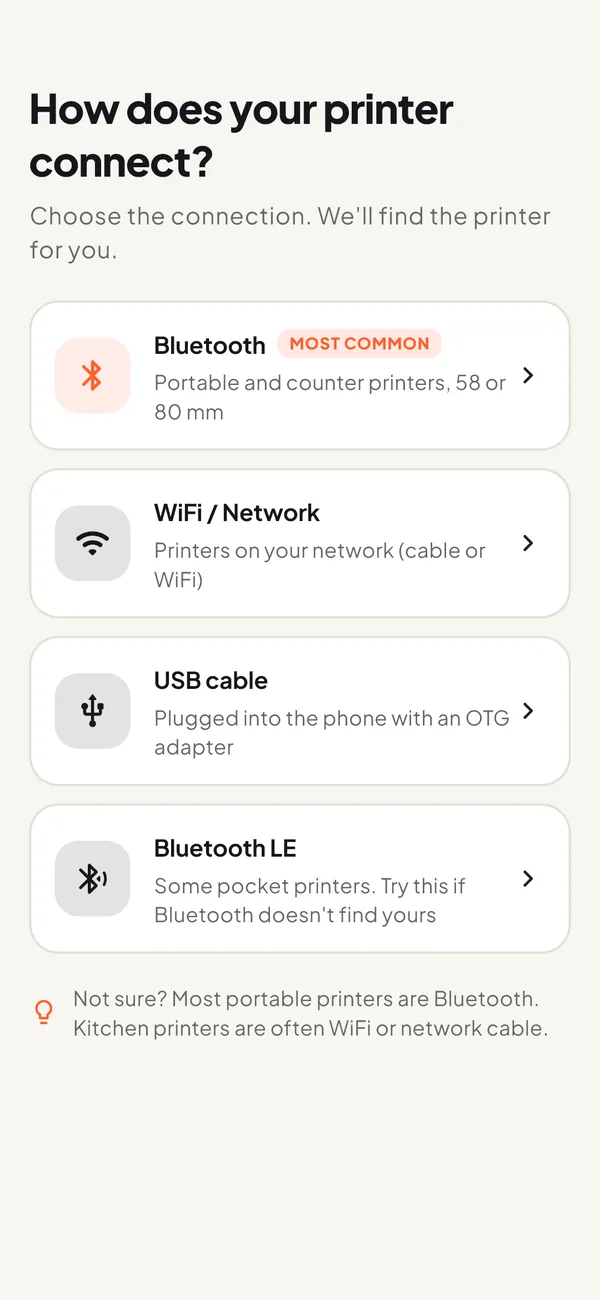
Choose USB cable. The first time you print, Android asks whether to allow Easy Thermal Print to access the printer. Tap OK. If you tap Cancel, the app can’t print: try again and allow it this time.
NoteAndroid asks for this permission again every time you unplug and replug the printer. It’s an Android safeguard for USB devices: just allow it.
NoteUsing another app? The steps are similar: look for an option like “Add printer”, choose USB, allow Android’s permission and print a test page.
-
Choose the paper width and print a test page
Many counter USB printers use 80 mm paper, but several also take 58 mm rolls: choose by the width of your roll. If you’re not sure, measure it.
Tap Print test page. The app asks Did it print well? If something looks wrong, tap what you see (Edges cut off, Too light, Strange symbols or Stops halfway) and print the test again. When it looks right, tap Save printer.
Done: from now on, everything you print goes to that printer.
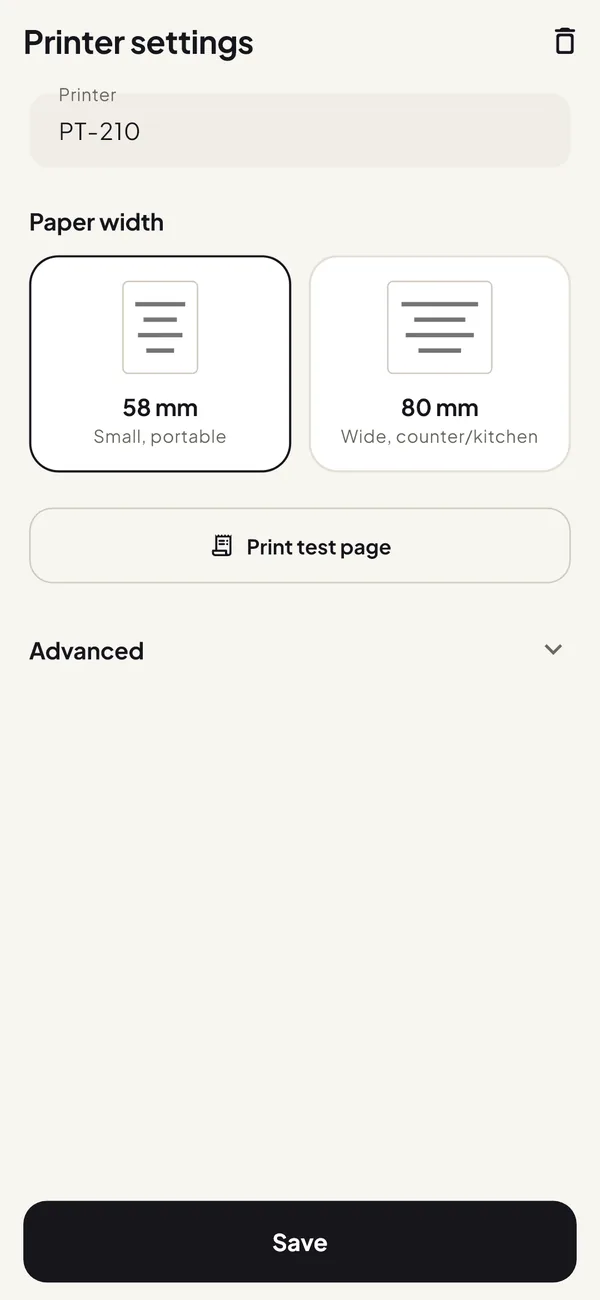
Choose the paper width and print the test page. With Easy Thermal PrintUnder Paper cutting, the app starts on Automatic for USB printers: every ticket comes out cut and complete. If your printer has no cutter and a stray letter or number prints at the end, choose Manual.
If something goes wrong
Can’t find it
The printer doesn’t show up in the app
Check that it’s plugged in and on, and that the cable is firmly in at both ends. Tap the refresh button at the top right. If it still doesn’t show up, try another adapter or cable: many phone cables only charge.
The phone doesn’t detect anything over USB
On some phones, such as OPPO and realme, you have to turn on OTG in Settings, and it turns itself off after a while without use. To check the adapter, plug in a USB flash drive: if the phone sees it, the adapter is fine.
My portable printer doesn’t show up over USB
On many 58 mm portable printers the USB port only charges the battery. Connect it over Bluetooth: guide to connect a Bluetooth printer.
Connects, but fails
It says “USB access was not allowed”
You tapped Cancel when Android asked for permission, or the prompt closed by itself. Print again and tap OK.
It was printing and stopped
If the cable moved or you unplugged it, Android asks for permission again: print again and tap OK. Also check that the printer is still on, with paper and the lid closed.
Prints badly
The paper comes out blank
The roll is almost certainly in backwards. Scratch the paper with a fingernail: the side that turns dark faces the print head.
It prints strange symbols
Tap Strange symbols after the test page. If nothing changes, the printer may not use ESC/POS: some USB label printers use other languages and only print with their maker’s software.
The edges are cut off
Check that the paper width matches your roll (58 or 80 mm) and tap Edges cut off.
A stray letter or number prints at the end of the ticket
This happens on printers without a cutter, which print the paper cut command as text. Under Paper cutting, choose Manual.
Tearing by hand loses the end of the ticket
On counter printers the tear edge sits far from the print head. If your printer cuts by itself, leave Paper cutting on Automatic and the ticket comes out complete. If you tear it by hand, raise Blank lines at end under Advanced.
Accents or emoji come out wrong
Many printers don’t include those characters, so they print as “?” or symbols. Easy Thermal Print prints accents, emoji and other alphabets correctly, even when your printer doesn’t include them.
Frequently asked questions
Do I need to install drivers to print over USB on Android?
No. Android doesn’t use printer drivers: all you need is an app that prints to receipt printers, such as Easy Thermal Print.
Can I charge the phone while it’s connected to the printer?
Not with a regular OTG adapter, because the phone’s port is in use. There are OTG adapters with a charging input, but not every phone charges through them. If the phone will print all day without moving, consider a Bluetooth or network printer.
Which is better, USB or Bluetooth?
USB needs no pairing and the connection doesn’t depend on distance, but the phone is tied to the printer by the cable. Bluetooth is more practical if the phone moves around. If your printer has both, try both.
Do I need internet to print over USB?
No. Printing over a USB cable works without internet.
Which printers does it work with?
Most 58 and 80 mm USB receipt and POS printers that use ESC/POS, the usual standard. It is the standard of common models such as the Epson TM-T20 or the Xprinter XP-58 and XP-80.