 Easy Thermal Print
Easy Thermal Print Guides
How to connect a Bluetooth thermal printer to an Android phone
Quick answer
- Turn the printer on and turn on Bluetooth on your phone.
- Pair it in Settings → Bluetooth. If it asks for a PIN, it’s usually 0000 or 1234. It will show as “paired” but not “connected”: that’s normal, it connects when an app prints.
- Open a printing app, because Android can’t print to receipt printers by itself. For example, Easy Thermal Print (free, no ads).
- In the app, add the printer over Bluetooth and print a test page.
Not showing up, blank paper or strange symbols? See the fixes.
We make Easy Thermal Print, the free app used in steps 3 to 5. Everything else here works the same with any app.
What you need: Bluetooth thermal printer (receipt or POS) with a roll of thermal paper · Android phone with Android 7.0 or later · A printing app: step 3 explains why
-
Prepare the printer: paper and self-test
Thermal paper only prints on one side, and a roll put in backwards is the most common reason a working printer prints blank pages. To find the printing side, scratch the paper quickly with a fingernail: the side that leaves a dark mark must face the print head. Most printers show the direction in a small drawing inside the lid.
Close the lid firmly. Many printers won’t print if it stays slightly open.
Then check that the printer works on its own by printing its self-test page. On most portable models: turn the printer off, hold the FEED button, turn it on and let go. On some models you hold FEED for a few seconds while the printer is on. If yours does neither, its manual will say how.
The self-test page usually shows the printer’s Bluetooth name, and sometimes its PIN. Note the name: it’s how you’ll recognize the printer in the next steps. If this page prints clearly, the printer and the paper are fine.
-
Turn on Bluetooth and pair the printer
On the phone, open Settings → Bluetooth, turn Bluetooth on and wait for the list of devices. On Samsung it’s Settings → Connections → Bluetooth, and on some phones, Connected devices → Pair new device.
Tap your printer’s name. It is often the model, such as PT-210 or MTP-II, or a generic name like “BlueTooth Printer”. If it asks for a PIN, try 0000 or 1234. Many printers don’t ask for one.
Once paired, Android shows the printer as “paired” but not “connected”. That’s normal and doesn’t mean something failed: receipt printers only connect when an app sends them something to print.
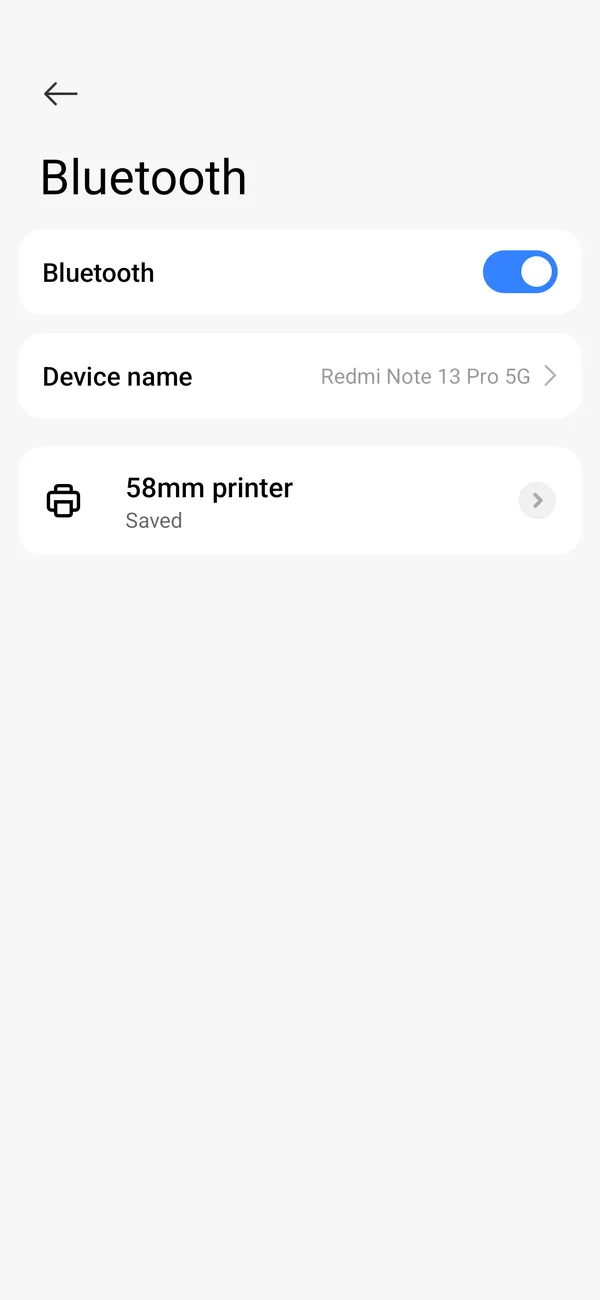
The paired printer in a Xiaomi’s Bluetooth settings. It says “Saved”, not “Connected”: that’s normal. NoteNot in the list, or listed but it won’t pair? Some pocket printers use Bluetooth LE (Low Energy), and those usually don’t need pairing in Android’s settings: they connect straight from the app. Go on to step 3.
With Easy Thermal PrintThis step is optional: the app also finds printers you haven’t paired yet.
-
Install a printing app
Android has no built-in way to print to receipt printers: its print menu is meant for office printers. So even once the printer is paired, nothing prints until an app sends the job in the language receipt printers understand, ESC/POS.
Easy Thermal Print is free, with no ads and no subscription, and prints receipts, kitchen orders, QR codes, barcodes, photos and PDFs.

-
Add the printer in the app
Open Easy Thermal Print and tap Connect my printer (later on, it’s Printers → Add printer). Choose Bluetooth.
Your printer shows under Paired if you did step 2. If not, tap Search nearby devices and wait a few seconds. Tap the printer to select it.
Android asks for a permission: Nearby devices on Android 12 and later, or Location on older versions, because Android requires it to search for Bluetooth devices. Easy Thermal Print doesn’t use your location.
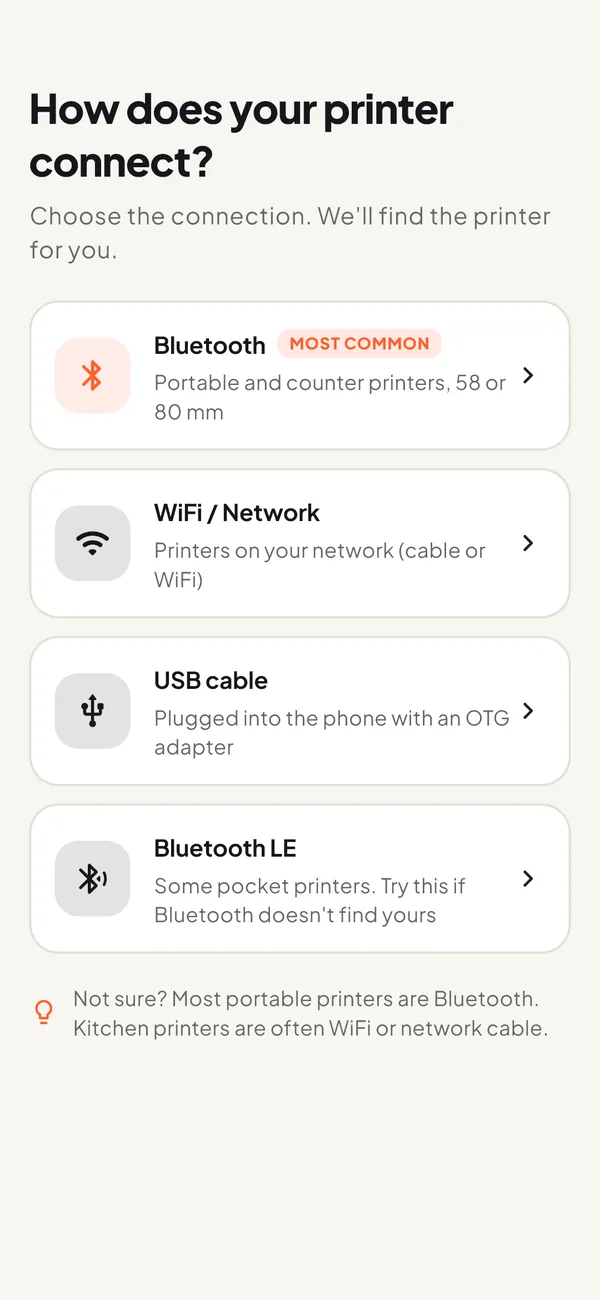
Choose Bluetooth. If your printer doesn’t show up, try Bluetooth LE. NoteUsing another app? The steps are similar: look for an option like “Add printer” or “Printer setup”, choose Bluetooth, tap your printer and print a test page.
-
Choose the paper width and print a test page
Pick 58 mm for small portable printers or 80 mm for wide counter and kitchen printers. If you’re not sure, measure the paper roll.
Tap Print test page. The app then asks Did it print well? If something looks off, tap what you see (Edges cut off, Too light, Strange symbols or Stops halfway) and print the test again. When it looks right, tap Save printer.
That’s it: from now on, everything you print goes to this printer.
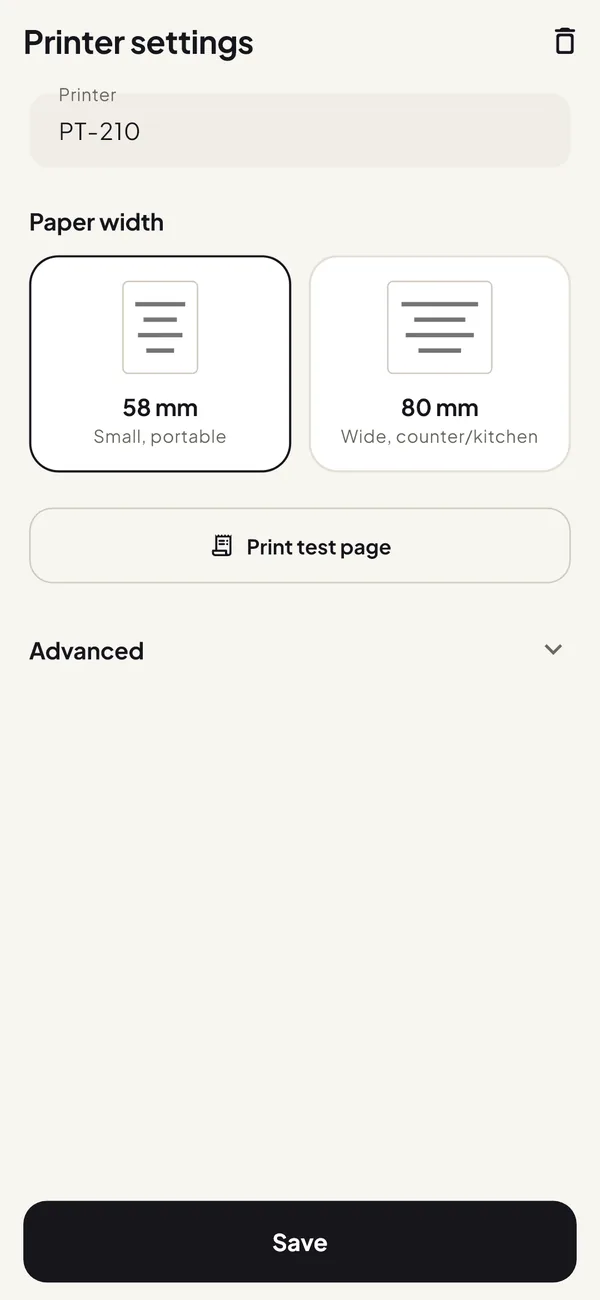
Pick the paper width, then print the test page.
If something goes wrong
Can’t find it
The printer doesn’t appear
Check that it’s on and charged, and keep it within a few feet of the phone. Most Bluetooth printers accept only one phone at a time, so turn off Bluetooth on any other phone or tablet that used it. Still nothing? Turn the printer off and on and search again, or try Bluetooth LE.
The app finds no devices
Usually the permission to search for devices was denied. Go to Settings → Apps, pick the app, open Permissions and allow Nearby devices, or Location on Android 11 and earlier. On those versions the phone’s location must also be on. Then search again.
It shows up twice with the same name
Some printers have both classic Bluetooth and Bluetooth LE, so they appear twice in the list. If one won’t pair or won’t print, try the other.
It asks for a PIN
It’s usually 0000 or 1234. Some printers show it on the self-test page or on a sticker underneath.
Connects, but fails
It connects, but nothing prints
Check that there is paper, the lid is fully closed and the battery isn’t low. Close other apps that may be connected to the printer. If it keeps failing, remove the printer in Settings → Bluetooth (Forget or Unpair) and pair it again.
It stops halfway through
It’s usually a low battery or too much distance. Charge the printer, move closer and tap Stops halfway.
Prints badly
The paper comes out blank
The roll is almost certainly in backwards. Do the fingernail test from step 1 and turn the roll over.
It prints strange symbols
Tap Strange symbols after the test page. If it still prints gibberish, the printer may not use ESC/POS: “cat printers” and label printers like Niimbot use their own systems and only work with their maker’s app.
The print is too light
Tap Too light once or twice. A low battery and old or cheap paper also give faint prints.
The edges are cut off
Check that the paper width matches your roll (58 or 80 mm), then tap Edges cut off.
Accents or emoji come out wrong
Many printers don’t have these characters built in, so they come out as “?” or symbols. Easy Thermal Print prints accents, emoji and other alphabets correctly, even on printers that can’t print them on their own.
Common questions
Do I need internet to print over Bluetooth?
No. Bluetooth printing works without internet; you only need the phone close to the printer.
Can two phones use the same Bluetooth printer?
Yes, but usually not at the same time: most Bluetooth printers accept one connection at a time. Disconnect the first phone, or turn off its Bluetooth, before printing from the second.
Which printers does this work with?
Most 58 and 80 mm Bluetooth receipt and POS printers that use ESC/POS, the usual standard. It’s the standard of common models such as the PT-210, the MTP-II and the Xprinter XP-58 and XP-80.
Do I have to pay for a printing app?
No. There are free apps that print to Bluetooth receipt printers. Before you pick one, check whether it shows ads, puts a watermark on your receipts or needs a subscription. Ours, Easy Thermal Print, is free and does none of the three; Pro is an optional one-time purchase.