 Luba
Luba Guides
Rent tracker spreadsheet: see who owes you and since when (free template)
Quick answer
- To track rent, use one row per tenant (unit, name, monthly rent, due day and lease start) and one column per month, where you enter what they paid for that month.
- A month that’s past due and still empty is a month they owe you. The first empty one is since when they owe you.
- Record every payment the day it comes in, under the month it covers, not the month it arrived. The security deposit goes in its own column.
- Below there’s a free spreadsheet for Excel and Google Sheets, with an example, that flags in red who owes you. With an app like Luba, the math happens on its own and you see who owes you when you open it.
Want it now? Download the spreadsheet.
We make Luba, the app in the “With Luba” boxes. The spreadsheet and the method work just as well without the app.
What you need: Your list of tenants, with their rent and due day · Excel, Google Sheets or LibreOffice (on your phone too) · Ten minutes to enter your tenants
-
Enter each tenant once
What doesn’t change goes in once, one row per tenant:
Unit: “Room 1 · 418 Elm St.” If you rent out several rooms in one house, use the same address for all of them so they stay together.
Tenant and phone.
Monthly rent and due day: the day of the month rent is due, like the 1st or the 15th.
Lease start: the first day of the lease. That’s where the count of what’s owed begins.
Security deposit: how much they left. It goes apart from the rent, because it’s money you’ll give back, minus whatever the law and the lease let you keep.
NoteMost states have their own rules for security deposits: how much you can ask, where you keep it and how soon you return it. Check yours before you deduct anything.
-
Download the free spreadsheet
The spreadsheet has those columns plus one for each month, January to December. It comes with an example: delete it or type over it. No email, no sign-up.
Download the Excel spreadsheet. It works in Excel, LibreOffice and Google Sheets: to use it in Google, upload it to your Drive and open it with Google Sheets. On your phone, open it with the Excel or Google Sheets app.
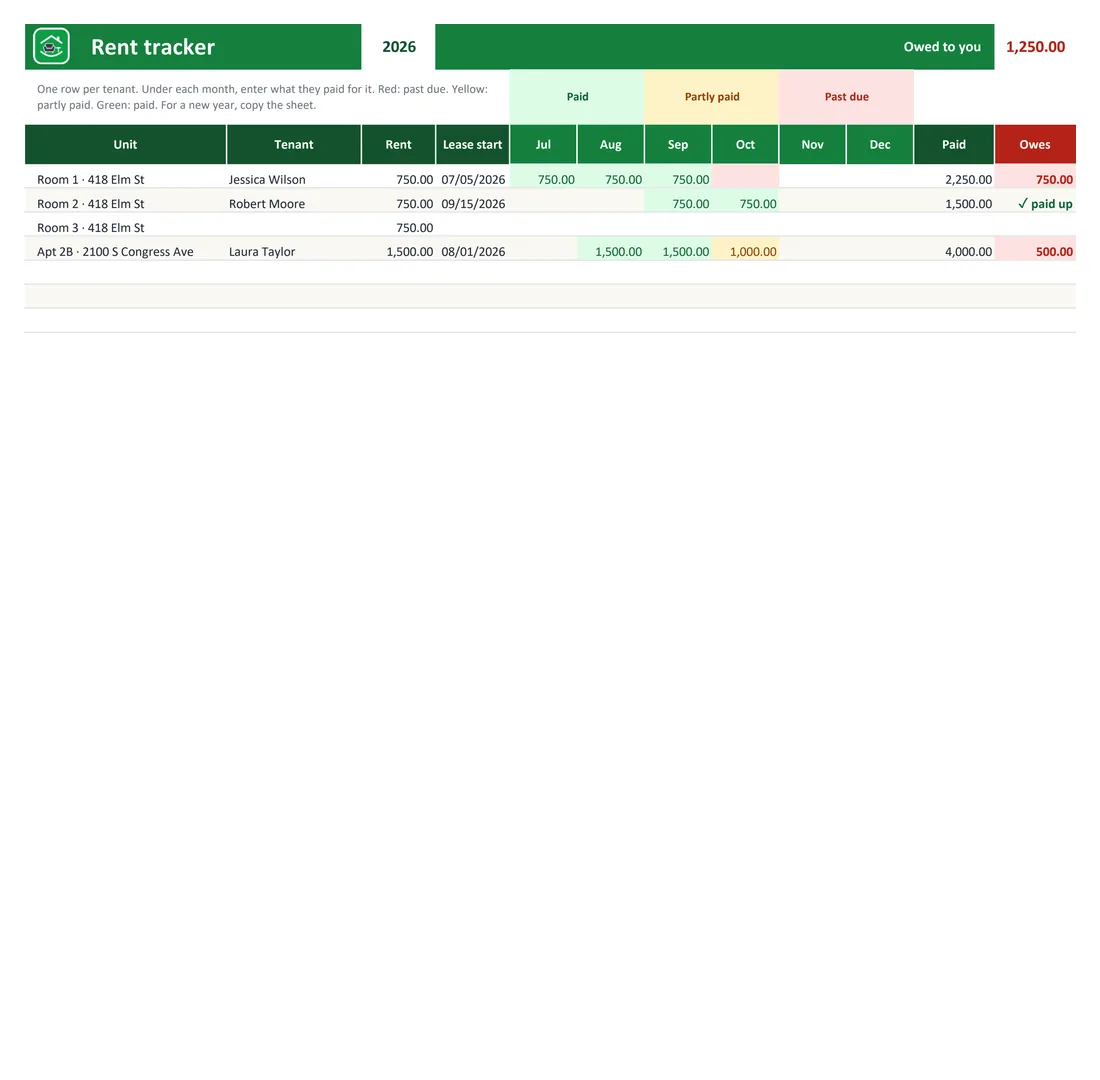
Red: past due. Yellow: partly paid. “Owes” adds up what’s left. The “How to use” sheet has the steps. For a new year, copy the sheet and change the year at the top.
-
Record each payment under the month it covers
When a tenant pays, enter the amount under the month it’s for, even if it comes in late. If Jessica pays October’s rent on November 12, it goes under October.
If they pay part of it, enter what you got: the cell turns yellow and “Owes” shows what’s left. Use “Notes” for the date and how they paid (Zelle, check number, cash).
Give a receipt for every payment, especially for cash: what a rent receipt should include, with a free template.
-
See who owes you and since when
Once a week, or on the due date, open the spreadsheet. A red cell is a month that’s past due and unpaid, and the first red cell in each row is since when that tenant owes you. The “Owes” column adds up what’s left this year.
With the spreadsheet up to date, the reminder writes itself: “Hi Jessica, just a reminder that October’s rent ($750) was due on the 5th.” More ready-to-send texts in rent reminder messages.
NoteIf your lease has a late fee, write it under “Notes” or in a row of its own, separate from the rent. Late fee rules vary by state (some require a grace period or cap the amount), so charge only what your lease and your state allow.
-
When you need a rent ledger
The tracker shows all your tenants at a glance. A rent ledger is the history of a single tenant, line by line: date, what was charged, what was paid and the running balance. Tenants sometimes ask for one to apply for another place or for rental assistance, and it’s what you’d bring if a dispute ever goes to court.
You can build it from the tracker: one row per charge and one per payment, with these columns: Date, Description (“October rent,” “Payment, Zelle”), Charge, Payment and Balance (the previous balance plus the charge, minus the payment).
Keep your receipts and bank records with it: the ledger says what happened, and they prove it.
-
When a spreadsheet isn’t enough
A spreadsheet works well with a few tenants, if you open it often. It gets harder when someone pays weekly or every two weeks, when you bill utilities separately, or when you’re away from your computer.
With LubaIn Luba, each lease counts the rent as it comes due, monthly, weekly or every two weeks. Today shows who owes you and since when, and under Properties each room shows Up to date or how much is owed. Utilities and other charges go on the lease with Add a charge, separate from the rent, and the security deposit has its own place. Each lease screen works as that tenant’s ledger: every rent and charge, what’s still owed and a receipt for what you received. It works offline and can save a copy to your Google Drive automatically.
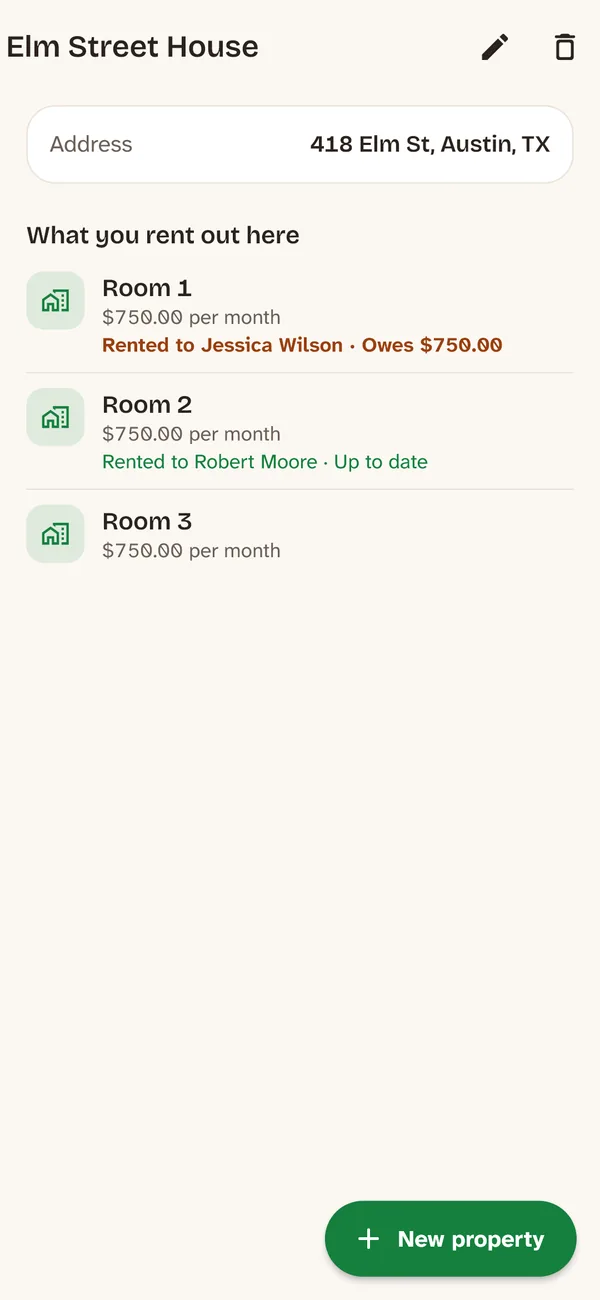
The rooms of one house, together: who’s up to date and who owes you. 
Common mistakes
Recording a payment under the month it arrived
If October is paid in November and you enter it under November, October looks unpaid and November looks paid. Enter it under the month it covers.
Not recording partial payments
If you only enter full months, you lose track of what’s left. Enter what you got, even if it’s only part.
Mixing the deposit with the rent
The deposit is money you give back. If you count it as rent, the month looks paid.
One sheet or notebook per tenant
To see who owes you, you have to open them all. One spreadsheet with every tenant reads at a glance.
Recording payments days later
What isn’t written down the same day gets forgotten. Record it when you get paid, before you put the money away.
No backup
If the file lives on one computer and it breaks, you lose everything. Keep a copy in your Drive or your email.
Frequently asked questions
How do I keep track of rent payments from my tenants?
With one row per tenant (unit, name, rent, due day and lease start) and one column per month, where you enter what they paid for that month. A past-due month that’s still empty is a month they owe you.
Is there a free rent tracker template for Excel or Google Sheets?
Yes. The one in this guide is free and needs no sign-up: one row per tenant, one column per month, colors for what’s paid and what’s missing, and a column with how much each tenant owes.
What is a rent ledger?
It’s the payment history of one tenant, line by line: the date, what was charged, what was paid and the running balance. Landlords use it to show what a tenant has paid and what they still owe.
How do I figure out how much a tenant owes?
Count the months that have come due since the lease started, multiply by the rent and subtract everything they’ve paid. The spreadsheet in this guide does that math in the Owes column.
Which month do I record a late rent payment in?
In the month it covers, not the month it arrived. If October’s rent comes in November, it goes under October.
Can I use the rent tracker on my phone?
Yes, with the Excel app or Google Sheets. On a small screen it’s harder to read every month’s column.
Is there a free app that shows which tenants owe rent?
Yes. Luba, by RollanSoft, keeps your rentals in order from your phone. It counts what comes due each month, week or two weeks, shows who owes you and since when, and notifies you the day each rent is due. It’s free for 2 properties, with no ads and no account; for more properties, Pro is a one-time purchase.